The 3-2-1 Rule and Other Core Backup Principles
To effectively back up data from a hard drive, you must create copies of your files in multiple locations. An old IT saying goes: “You never realize how important backups are until you need one and don’t have it.” Unfortunately, this truth hits thousands of businesses and individuals every day.
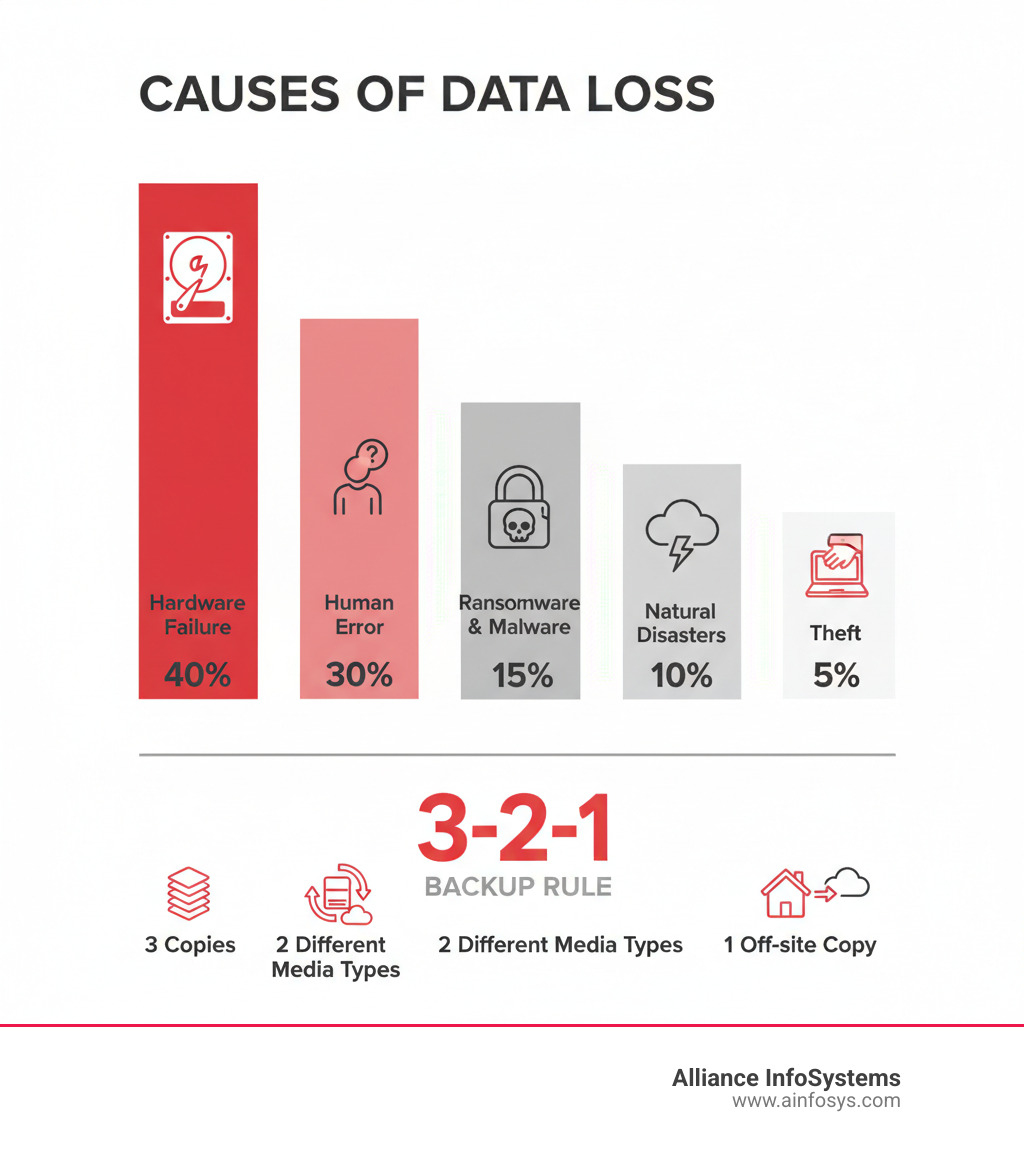
Losing data because of a computer problem or a hard disk crash is discouraging. You might lose family photos, your music collection, financial records, or critical business documents. The threats to your data are real and growing. Hardware fails—traditional hard drives have motors and platters that eventually wear out. Human error happens—a misplaced click can delete months of work. Ransomware attacks are surging, encrypting your files and demanding payment with no guarantee of recovery. Natural disasters, theft, and simple accidents can strike at any time.
Yet studies show that a very small percentage of computer owners back up their data daily, meaning the vast majority are risking permanent data loss every single day.
The good news? Modern backup solutions make protecting your data easier than ever. Whether you run a small business or manage your home computer, you have multiple options that fit your budget and technical comfort level.
What Data Should You Prioritize for Backup?
When we talk about backing up your hard drive, it’s easy to feel overwhelmed. The short answer: save anything you can’t easily replace.
Here’s a breakdown of what we recommend prioritizing:
- Irreplaceable Personal Files: This is often the most emotionally valuable data. Think of your family photos, home videos, and cherished music collection. These are unique memories that cannot be recreated.
- Important Documents: Your important documents include everything from tax returns, legal papers, resumes, and work files. For businesses, this includes customer data, financial records, and intellectual property.
- Financial Data: Bank statements, investment records, and budgeting spreadsheets fall into this category. Keeping secure backups of your financial data is crucial for personal and business accountability.
- Operating System (OS) and Applications: While you can reinstall your OS and applications, backing them up as a “system image” saves immense time. Reconfiguring personal settings like desktop backgrounds, sounds, and wireless network configurations on a new machine can be a hassle. A full system backup restores your environment quickly.
We recommend starting with irreplaceable files, then expanding your strategy to include your entire system for complete peace of mind.
So, how do we create a robust backup strategy? The gold standard for data safety, widely recommended by experts and even the US government (US-CERT), is the 3-2-1 backup rule. It’s a simple, effective strategy that has stood the test of time.
The 3-2-1 rule advises:
- Three copies of your data: This means your original data plus at least two backup copies. If one backup fails, you still have another.
- On two different media (or devices): This means using different physical formats, such as your computer’s internal drive, an external hard drive, and a cloud service. The key is diversity—don’t put all your eggs in one basket.
- With one copy off-site: This is crucial for protecting against local disasters like fire, flood, or theft. If your home or office is affected, your off-site backup remains safe.
Implementing the 3-2-1 rule provides excellent data redundancy and geographic distance, significantly reducing your risk of permanent data loss. For example, backing up a home computer to an external hard drive and also to a cloud backup service achieves a 3-2-1 strategy.
When choosing backup media, you might consider the differences between traditional hard disk drives (HDDs) and solid-state drives (SSDs). SSDs are more durable, reliable, faster, smaller, lighter, silent, and more power-efficient than traditional hard drives. While HDDs offer more storage for less cost, SSDs are often preferred for their speed and resilience.
You can learn more about the 3-2-1 backup rule and its evolution here: The 3-2-1 Backup Rule: Still the Standard for Data Safety?
On-Site vs. Off-Site Backups: What’s the Difference?
Understanding the distinction between on-site and off-site backups is vital for a comprehensive data protection strategy.
-
On-Site (Local) Backups: These are backups stored physically near your primary computer. Common examples include external hard drives and Network Attached Storage (NAS) devices. The main advantage is quick recovery. However, they are vulnerable to the same local threats as your primary data—fire, flood, or theft.
-
Off-Site Backups: These are backups stored in a remote location. The most common form today is cloud storage, which stores your data on remote servers managed by a third party. The primary benefit is protection from local disasters. While recovery might be slower due to internet speeds, the peace of mind they offer is invaluable.
For optimal protection, we strongly recommend combining both: an on-site backup for quick recovery and an off-site backup for disaster recovery. Consider storing physical backup media in a fireproof location separate from the computer’s location for added security.
How Frequently Should You Perform Backups?
“How often should I back up my data?” The answer depends on how frequently your data changes and how critical it is.
- Daily Backups: For critical business data or projects that update constantly, daily backups are a necessity. Losing more than a day’s work could be catastrophic.
- Weekly Backups: For personal data that doesn’t change as often (like a photo library), weekly backups can be sufficient.
- Data Change Rate: The key concept is your data change rate. If you add or modify files daily, you need more frequent backups.
- Automation is Your Friend: Modern backup solutions allow you to automate backups with proper scheduling. Setting it and forgetting it (while still verifying periodically) is the easiest way to ensure consistency and protection.
With many people not backing up data consistently, it’s important to establish a routine. Don’t risk your precious data.
A Practical Guide: How to Back Up Data From Hard Drive
Now that we understand why and what to back up, let’s get practical. You’re probably wondering, “Okay, but how do I actually back up data from hard drive?” The good news is you have several options, and we’re going to walk through each one so you can choose what works best for your situation.
We’ve created a comparison table below to give you a quick overview. Then we’ll dive into the details of each method, step by step.
| Method | Pros | Cons | Best For |
|---|---|---|---|
| Manual Backup | Simple, no extra cost (if you have an external drive) | Time-consuming, prone to human error, no versioning, easy to forget | Small amounts of non-critical data, one-off transfers |
| OS Built-in Tools | Free, integrated with your system, relatively easy to set up | Limited features, OS-specific, may not offer off-site options, can be less intuitive (Windows 11) | Regular personal file backups, system image creation |
| Automated Software | Comprehensive features (scheduling, versioning, encryption), reliable | Can incur subscription costs, learning curve for advanced features | Businesses, users with complex needs, full system protection |
| Cloud Backup | Off-site protection, accessibility, automatic, scalable storage | Requires internet, subscription costs, potential privacy concerns, slower recovery for large data | Off-site redundancy, mobile access, protecting against disasters |
Method 1: Manual Backup to an External Drive
Let’s start with the simplest approach. Manual backup is exactly what it sounds like: you physically copy files from your computer to an external drive yourself.
First, connect an external SSD or traditional hard drive to your computer. Open File Explorer on Windows or Finder on Mac, steer to the folders you want to protect, and then copy and paste or drag and drop them onto your external drive. When you’re finished, always eject the drive properly to prevent data corruption.
The upside? This method is incredibly simple, and there’s no extra cost beyond the drive itself.
The downside? It’s time-consuming, prone to error, and offers no versioning (you only have the last copy you made). Most importantly, you have to remember to do it regularly, which is easier said than done.
This method works for occasional transfers, but for ongoing protection, you need something more reliable.
Method 2: Using Your Operating System’s Built-in Tools
Both Windows and Mac come with free backup tools built right in. They’re a significant step up from manual copying and require no extra software.
Windows Backup Tools (Windows 10 & 11)
Windows offers a couple of options, though they can sometimes be tricky to find.
File History automatically backs up your user folders (Desktop, Documents, Pictures, etc.) to an external drive. It saves multiple versions of your files, so you can recover an older version if needed. To set it up, connect an external drive, search for “File History” in the Start menu, and select your drive. You can configure how often it backs up and how long it keeps versions.
Backup and Restore (Windows 7) is another tool still available in Windows 10 and 11. This is ideal for creating a system image backup—an exact copy of your entire hard drive, including the OS, programs, and files. This is invaluable if your main drive fails completely. To use it, open Control Panel, go to “Backup & Restore (Windows 7),” and click “Create a system image.”
For more detailed guidance on Windows backup tools, Microsoft has a helpful guide here: Back up and restore with Windows Backup.
macOS Time Machine
Mac users have Time Machine, a simple and effective built-in tool. Connect an external storage device (Apple recommends one with at least twice your Mac’s storage). Your Mac may ask if you want to use it for Time Machine. If not, go to System Settings > General > Time Machine and select your drive. We recommend encrypting your backups for extra security.
Once set up, Time Machine works automatically, backing up hourly for the past 24 hours, daily for the past month, and weekly for all previous months. It automatically deletes the oldest backups when the drive is full. Restoring a single file or your entire system is incredibly straightforward.
Apple provides detailed instructions here: Back up your Mac with Time Machine.
Method 3: Leveraging Automated Backup Software
While built-in OS tools are solid, third-party backup software takes protection to the next level. These tools are ideal for businesses or users with complex needs who want the most comprehensive protection available.
What makes this software worth considering? First is automation and scheduling. You can set detailed schedules for when backups occur, such as overnight. These programs also use smart backup methods. Incremental backups save only what’s changed since the last backup, making them fast and efficient. Differential backups save everything that’s changed since the last full backup.
Versioning is another powerful feature, keeping multiple versions of your files so you can restore a file from last week if you accidentally saved over it. Security is also a priority, with strong encryption and backup verification to ensure your backups are intact and restorable. An untested backup isn’t a reliable backup.
Many solutions also integrate with cloud storage, giving you both local and off-site protection. They let you easily select what to back up (files or the entire PC), choose a destination, and initiate backups with a click.
The tradeoff is that these programs can involve subscription costs and may have a learning curve for advanced features. But for businesses or users with critical data, the investment is usually worth the peace of mind.
Method 4: The Power of Cloud Backup
Cloud backup offers something local backups can’t: protection against disasters that affect your entire physical location.
Instead of backing up to a drive on your desk, cloud backup services send your data over the internet to secure, remote servers. Most services provide software that runs quietly in the background, automatically uploading new or changed files.
The benefits are compelling. Off-site protection is the biggest one, fulfilling the “one copy off-site” part of the 3-2-1 rule. The process is automatic and effortless once set up. Your data is also accessible from anywhere with an internet connection.
Cloud storage is scalable, allowing you to purchase more space as your needs grow. The durability and reliability are also impressive, as providers invest heavily in redundant infrastructure.
Of course, there are considerations. You need a stable internet connection, especially for the initial full backup. Recovery of large amounts of data can also be slow. Most services involve subscription costs, though some offer free tiers. For example, Microsoft OneDrive provides 5 GB of free storage with a Microsoft account, and Microsoft 365 subscriptions include additional storage: Microsoft 365 subscription benefits.
There are also privacy concerns. While reputable providers use strong encryption, you are entrusting your data to a third party. Always choose well-established providers and use strong, unique passwords.
It’s important to distinguish cloud backup from cloud synchronization services like Dropbox or Google Drive. Sync services are for convenience, not true backup. For genuine off-site protection, dedicated cloud backup services are the way to go.
Protecting Your Backups: Security, Storage, and Professional Recovery
Creating backups is only half the battle—protecting those backups is just as important. What good is a backup if it’s stolen, damaged, or corrupted? Think of it this way: you wouldn’t leave your spare house key under the doormat. The same principle applies to your data backups.
Best Practices for Storing and Securing Your Backup Media
Your backup is your safety net, and it needs to be in perfect condition when you need it most.
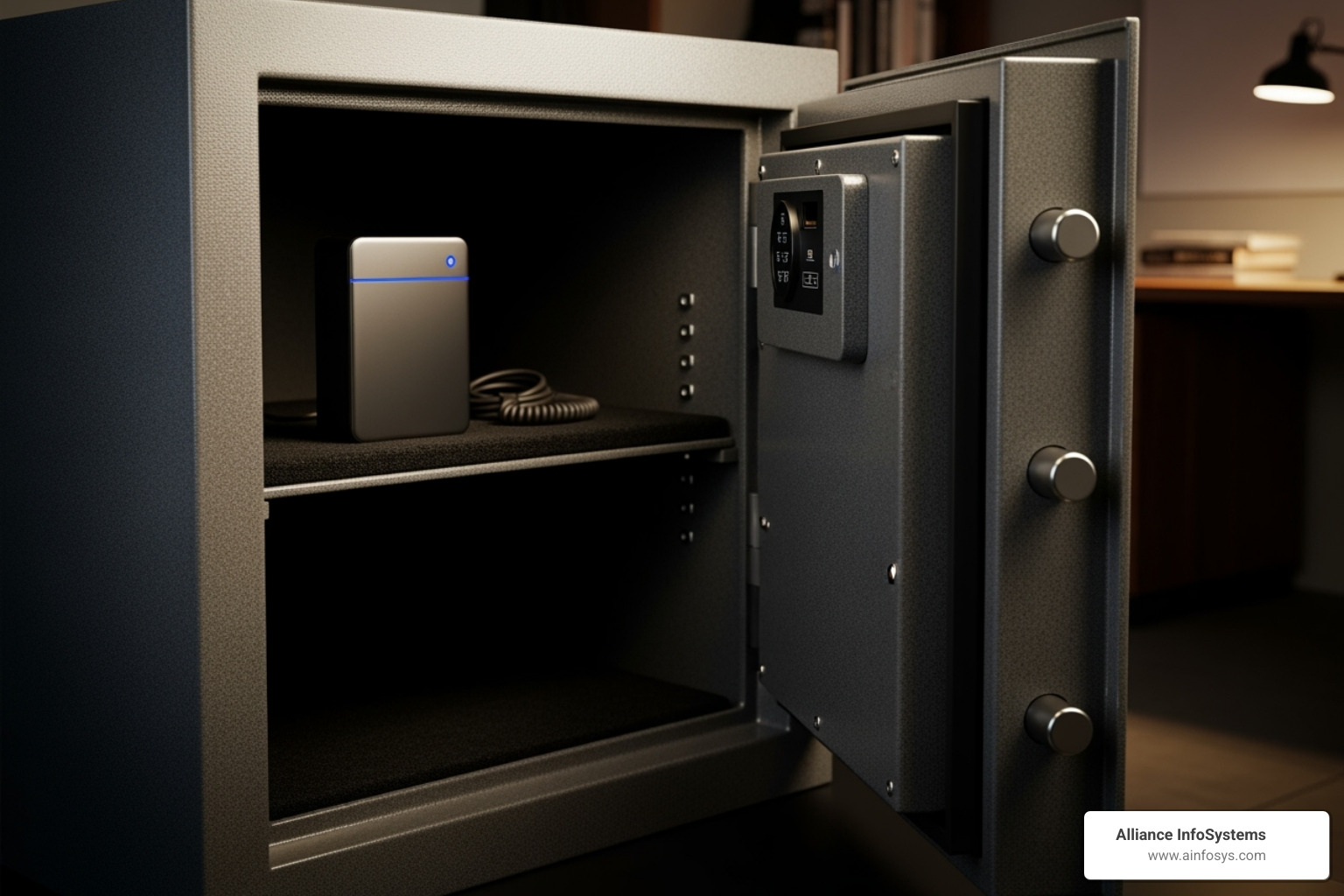
First, always store your physical backup media in a secure location to prevent unauthorized access. For serious data protection, consider investing in a fireproof safe for your local backups. A good safe can mean the difference between total loss and complete recovery after a fire.
Here’s a crucial rule: never store your primary computer and its local backup media in the same place. This is why the “one copy off-site” part of the 3-2-1 rule exists. When you back up data from hard drive, make sure at least one copy lives somewhere else entirely—whether that’s cloud storage, a drive at a friend’s house, or a bank safety deposit box.
For sensitive data, data encryption is essential. Many backup solutions offer built-in encryption. This ensures that even if your backup drive is lost or stolen, your data remains unreadable without the password. Always use strong, unique passwords for encrypted backups and cloud accounts.
Finally, regularly verify your backup integrity. An untested backup is a gamble. Take the time to test restoring a file or two from your backup every few months. It’s a small investment of time that can save you from heartbreak later.
When to Call the Pros: Understanding Data Recovery Services
Sometimes, despite our best efforts, data loss happens without a working backup. This is when you might need professional data recovery services.
If your hard drive has suffered physical drive damage—from being dropped, exposed to water, or making clicking noises—it’s beyond the scope of software solutions. Professional data recovery specialists use specialized tools, often in clean room environments, to attempt to recover data from severely damaged drives. These are not typical computer repair shops; they are highly specialized facilities.
Be prepared for significant service costs. Data recovery is a complex field, and the pricing reflects that. Diagnosis fees can be costly, and actual recovery can run from hundreds to even thousands of dollars, depending on the severity of the damage. There is also no guarantee of success.
Data recovery is truly a last resort, used when it’s too late for backups. The high cost and uncertainty underscore why proactive, regular backups are so vital. Our goal at Alliance InfoSystems is to help you avoid ever needing such costly services in the first place.
Proactive Steps to Prevent Data Loss in the First Place
While backups are your safety net, prevention is always better than cure.
Start with the basics: use quality surge protectors for your computer and external drives. Install and regularly update antivirus software to block malware, viruses, and ransomware. Keep your operating system and all software up-to-date with regular system updates, as these often include critical security patches.
Be vigilant about avoiding phishing scams. Suspicious emails are often attempts to trick you into installing malware or handing over passwords. When in doubt, don’t click. Practice safe browsing habits by sticking to reputable websites and being cautious about what you download.
Finally, handle your laptop and external drives with care. A drop can cause catastrophic damage to a traditional hard drive. This is another reason SSDs are gaining popularity—they’re much more resistant to physical shock.
By combining these preventative measures with a solid backup strategy, you create a robust defense for your valuable data. At Alliance InfoSystems, we’ve been helping Maryland businesses protect their data for over 20 years. If you need help setting up a comprehensive backup and security solution, we’re here to help.
Frequently Asked Questions about Hard Drive Backups
We’ve covered a lot of ground on how to back up data from hard drive, but you probably still have questions. Let’s address some of the most common ones.
What’s the difference between a backup and cloud sync (like OneDrive/Dropbox)?
This is a common point of confusion that can lead to data loss. Cloud sync services like OneDrive, Google Drive, or Dropbox are great for keeping files up-to-date across devices. However, file synchronization isn’t the same as a true backup.
Syncing typically works with a single version of each file. If you accidentally delete a file or it becomes corrupted, that change syncs everywhere. While some services have a recycle bin or limited versioning, their primary purpose is access, not recovery.
A true backup creates independent, point-in-time copies of your data. If you make a mistake, you can restore a clean version from a previous backup. True backups maintain a deep version history and keep copies separate from your active files, protecting you from accidental deletion, corruption, and even ransomware.
Think of sync as a convenience tool and backup as your insurance policy. Many people use both.
How much storage space do I need for my backup drive?
A good rule of thumb is to get a backup drive that’s 2-3 times the size of the data you’re backing up. If your computer has a 1TB hard drive with 500GB of files, aim for at least a 1-1.5TB backup drive.
This extra space is necessary for keeping multiple versions of your files, which is a key feature of good backup practices. If you create full system images, you’ll also need enough space for these large snapshots of your entire drive. Finally, having extra room for growth means you won’t be shopping for a new backup drive in six months.
Can I use my computer while a backup is running?
Yes, absolutely. Modern backup solutions are designed to run quietly in the background with minimal impact on performance.
The one exception might be the very first initial backup. If you’re backing up a large amount of data for the first time, your computer might feel a bit sluggish. We recommend running this first backup overnight or during a time you’re not actively using the computer.
After that, subsequent incremental backups only copy new or changed files, which is a much faster process. The potential performance impact of these ongoing backups is negligible for most everyday tasks. You can work, browse, and stream without interruption while your data is being protected.
Conclusion: Secure Your Data’s Future Today
We’ve journeyed through the real threats to your data—hardware failure, human error, ransomware attacks, and natural disasters—and the practical solutions that can protect you. Losing your data is devastating, whether it’s irreplaceable family photos or critical business documents.
But here’s the good news: you now have the knowledge to protect yourself.

The 3-2-1 backup rule is your roadmap to real protection: three copies of your data, on two different types of media, with one copy off-site. This simple strategy has protected countless individuals and businesses from total data loss. Implementing it builds a safety net that actually works.
You don’t need to be a tech expert to back up data from hard drive effectively. Start simple with your operating system’s built-in tools or jump into a comprehensive cloud solution. Whatever path you choose, the important thing is to start today—not next week, but right now.
Don’t be one of the many people walking a tightrope without a safety net. The peace of mind that comes from knowing your memories and work are protected is invaluable.
At Alliance InfoSystems, we’ve spent over 20 years helping Maryland businesses and individuals protect what matters most. We know every situation is unique, which is why we offer flexible, customized solutions that fit your specific needs and budget. Whether you’re a small business owner looking for comprehensive protection or a home user wanting simple peace of mind, we’re here to help.
Ready to take the next step? Let’s have a conversation about securing your digital future: More info about our data backup and recovery services
Your data is irreplaceable. Your backup strategy shouldn’t wait another day.